

Introduction to LinkedIn and visual elements
LinkedIn is a great platform for both professionals and businesses to network, share knowledge and discover new opportunities. Your visual content on LinkedIn, such as images and videos, plays a big role in creating the right first impression. I’d like to share some personal recommendations and tips with you to ensure your profile stands out positively.
Profile pictures
Personlig profil
Dit profilbillede er ofte det første, folk lægger mærke til, når de besøger din LinkedIn-profil. Derfor er det vigtigt, at det afspejler, hvem du er, og giver et godt indtryk.
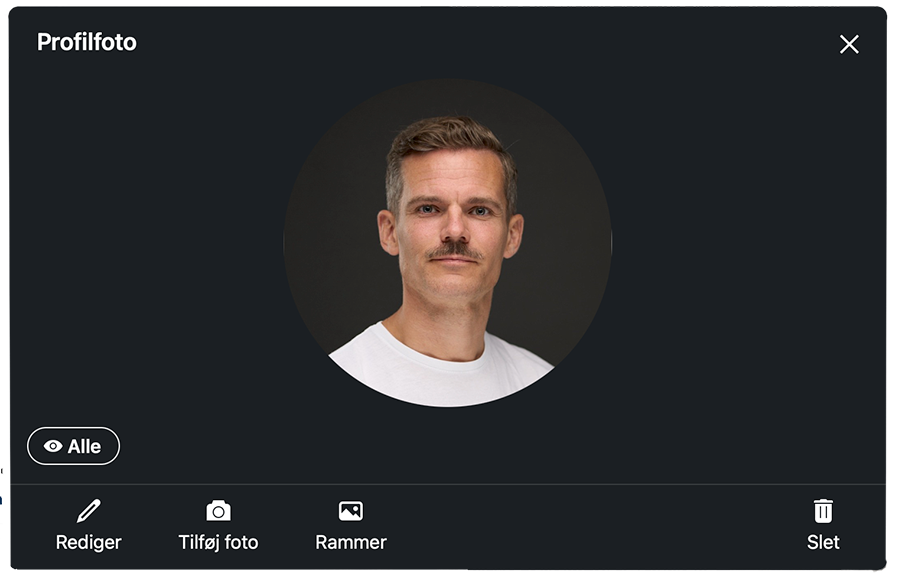
Recommendations for profile pictures
Crop your profile picture online
To make sure your profile picture fits LinkedIn’s format perfectly, you can easily crop the image online. This can be useful if your image has extra space around the face, or if you want to make sure your face is centered in the circular frame.
We recommend using the free tool imgonline.tools/crop. It’s quick, simple and requires no installation. Here’s how you do it:
How to crop your image:
- Gå til imgonline.tools/crop.
- Upload dit billede ved at klikke på knappen “Upload Image”.
- Indstil beskæringsområdet til et kvadratisk format (1:1) – dette sikrer, at billedet passer til LinkedIn’s krav.
- Sørg for, at dit ansigt er centreret i midten af billedet.
- Klik på “Crop” og download det nye billede.
💡 Tip: If you’re unsure how the image will look in circle format, you can test it by viewing your image in a small preview. Alternatively, you can upload it directly to LinkedIn and check how it appears in their cropping tool.
Personal tip
I always advise my customers to check how their profile picture looks in both large and small sizes. Often we upload an image that looks great in large format, but when viewed at a smaller size, some of the subtle nuances in our facial expressions can be lost. For example, a small smile in a large image can almost disappear in a thumbnail version, which can change the impression you give. Therefore, it’s a good idea to choose an image where the smile is slightly larger so that your kindness shines through regardless of the size.
Remember: Always choose an image that you feel comfortable with and that fits your personality and professional brand.
Cover image
Your background image is a great opportunity to show your personality, highlight your interests or illustrate what industry you work in.
Tips: Choose an image that represents you or your industry. Avoid text or important elements in the border as they can be cut off on different screen sizes.
Company pages
Logo
Your company logo is a central part of your visual identity on LinkedIn. It needs to be clear and recognizable.
Background image
The background image on your business profile can be used for branding, promotions or simply to make the page more visually appealing.
Advertising on LinkedIn
Single image ad
This format is ideal for driving traffic to your website or promoting a specific service.
Tips: Use clear, high-resolution images and short, concise text to grab attention.
Carousel ad
Carousel ads allow you to tell a story through multiple images or slides.
Video ad
Videos can be an effective way to engage your audience, but it’s important to use the right dimensions.
Tips for your images
Closing thoughts
The most important thing is that you feel comfortable with the images you choose. Your LinkedIn profile should reflect who you are – both professionally and personally. Trust your gut and choose an image that feels right for you.
I always recommend my clients to check how the image looks in both large and small view. This is important because LinkedIn often displays your image in a smaller format where details and facial expressions can change. For example, a small smile that looks friendly in large format may appear reserved, sour or sad in the small view. Therefore, make sure your expression is clear and distinct, no matter the size.
Make the process easier with online tools
To make it quick and easy to adjust your images to the recommended sizes, you can use tools like Canva or Photoshop. Both platforms allow you to adjust image sizes and crop images to fit perfectly for LinkedIn or other social media.
If you want a simple and free solution, you can use imgonline.tools/crop to crop your image directly in the browser – no software required. To see exactly how to do this, watch the video further up the page where we guide you step-by-step.
By following these tips, you can ensure that your images on LinkedIn always look professional and inviting.
Need help getting a new, professional LinkedIn profile picture? Contact me today and let me help you strengthen your visual identity and create an image that presents you at your best.
| Billedtype | Anbefalet størrelse | Forhold | Beskrivelse |
| Profilbillede | 400 x 400 pixels | 1:1 | Personligt billede, der vises i en cirkulær ramme. |
| Coverbillede (baggrundsbillede) | 1584 x 396 pixels | 4:1 | Stort baggrundsbillede øverst på din LinkedIn-profil. |
| Kvadratisk billedopslag / Karrusel | 1200 x 628 pixels | 16:9 | Bruges til billedopslag, der kræver et højere billede. |
| Artikel bannerbillede | 600 x 322 pixels | 16:9 | Bannerbillede i toppen af en LinkedIn-artikel. |
| Weblink preview-billede | 1200 x 627 pixels | 1.91:1 | Billedforhåndsvisning, når du deler et link på LinkedIn. |
| Stories | 1080 x 1920 pixels | 9:16 | Fuldt skærmbillede, når du uploader en LinkedIn Story. |
| Virksomhedsside – Profilbillede | 300 x 300 pixels | 1:1 | Fuldt skærmbillede, når du uploader en LinkedIn Story. |
| Virksomhedsside – Coverbillede | 1128 x 191 pixels | 5.9:1 | Baggrundsbillede på en LinkedIn-virksomhedsside. |
| Virksomhedsside – Logo | 60 x 60 pixels | 1:1 | Lille logo, der vises ved indlæg fra virksomheden. |
| LinkedIn Event Header | 1600 x 900 pixels | 16:9 | Headerbillede for en LinkedIn-begivenhed. |
| Event- og gruppelogo | 300 x 300 pixels | 1:1 | Bruges til logoer i begivenheder og grupper. |
| LinkedIn Gruppe – Headerbillede | 1536 x 768 pixels | 2:1 | Baggrundsbillede for en LinkedIn-gruppe. |